
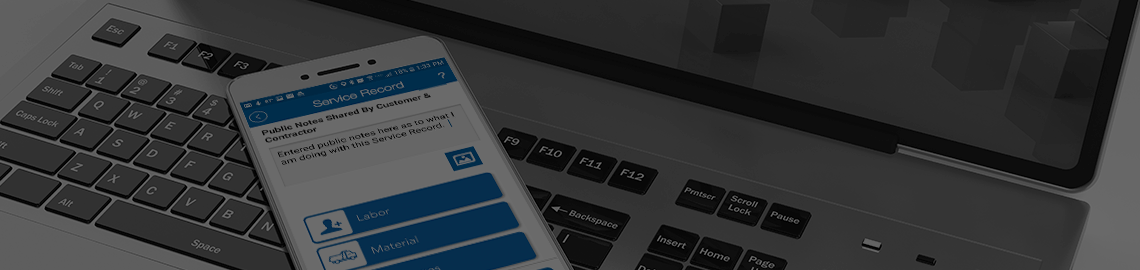
This is where all the jobs that have been assigned to you will show up on your phone. The jobs are listed as buttons that contain basic information about the job. If you wish to know more about the job, you can press the button and a new Start Work screen will load showing you more data.
The buttons for each job will give you the following information.
- Job # - The job number assigned by the Customer to the job.
- Custom Job # - If you or another mobile user has opened this job before and assigned a custom job number, it will be shown, custom job numbers can be assigned by mobile users or by the customer but represent a job number related to the Guest Contractor.
- Job Site Name – This is the name of the job site.
- Scheduled Date – This is when the customer expects the job to be started.
- Address – This will be the address of the job site.
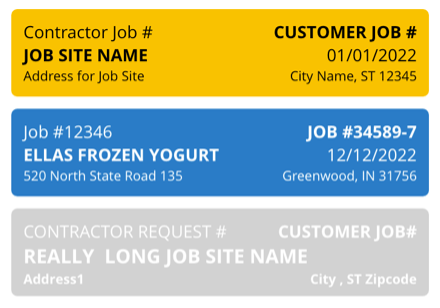
Job Button Colors
The job buttons can be different colors. Buttons that are Blue are typical jobs that have not been done. Jobs that are Yellow are jobs with a priority of Emergency and indicate that the Customer has a need to get the job done ASAP. Jobs that are gray are jobs that have been completed. Jobs will show up on the mobile when completed if two conditions are met.
- You are assigned to the job.
- The job is scheduled for the current day.
